Is Figma Worth It? Complete 2026 Review


Figma is a cloud-based interface design, prototyping, and collaboration tool used to create websites, apps, design systems, and visual product flows. It lets designers, developers, and clients work on the same file in real time without relying on heavy installations or endless version sharing. If you want a direct answer to what Figma is, what it does, and whether it fits your workflow, this guide gets straight to the point.
- What Figma is
- How Figma works
- Key features of Figma
- Figma pricing 2026
- Pros and cons of Figma
- Alternatives to Figma
- Who Figma is for — and who it is not for
- TeideSEO final opinion and rating
- Frequently asked questions
- Conclusion
What Figma is
Figma belongs to the design and visual content category, but in practice it goes far beyond a basic design app. It has become a shared workspace where product teams, UX/UI designers, front-end developers, marketers, and stakeholders review, comment on, and approve the same visual proposal. That changes the way teams work because it reduces the classic problem of duplicate files, outdated versions, and feedback scattered across emails, PDFs, and screenshots.
When people search for what Figma is, they often want to know whether it is only for designers. From our experience, it is not. Figma works for anyone involved in the visual building of a website or digital product, from the person shaping a landing page structure to the person validating copy, components, states, or form behavior. In premium web design projects, that matters because design stops being just a pretty image and becomes a living specification for how the interface should be built.
The main problem Figma solves is fragmentation. It used to be common to design in one tool, prototype in another, document in a third one, and then pass assets manually to developers. With Figma, much of that workflow is centralized: screen design, reusable components, clickable prototypes, comments, measurement inspection, and asset export all live in one environment. That does not solve every issue, but it removes a lot of operational friction.
It is also important to place it correctly against other tools. Figma is not primarily meant for quick social media graphics, generic presentations, or basic marketing visuals, even though it can be used for some of that. Its natural territory is digital product design, interface definition, design systems, and collaboration between technical and non-technical roles. If that is your context, Figma usually makes more sense than tools aimed at general-purpose content creation.
How Figma works
Figma works as a cloud-first application that combines vector editing, component management, interactive prototyping, and real-time collaboration in the browser or desktop app. In practice, users work on files stored in shared spaces organized by teams and projects, where each screen is built with frames, layers, styles, and reusable components. The editing engine lets users manipulate vectors, text, images, and constraints for different screen sizes, while Auto Layout adds behavioral rules that simulate how a real interface would respond. That makes the file more than a static canvas; it becomes a fairly realistic representation of a working UI.
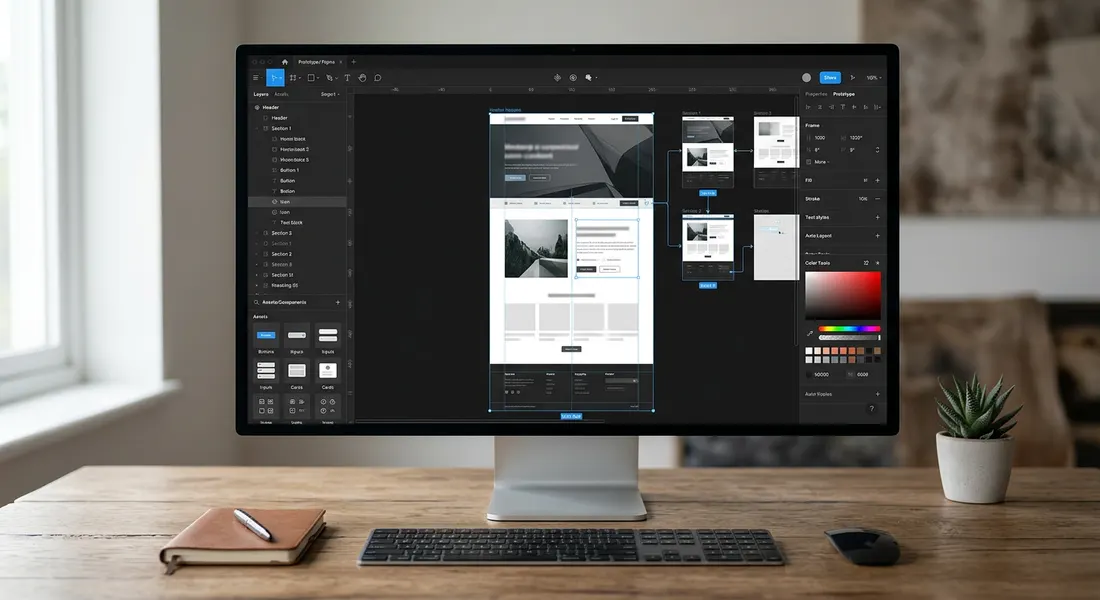
The truly differentiating part of Figma is how it synchronizes work. Several people can edit the same file at the same time and see each other’s cursors live, in a way that feels similar to Google Docs but applied to design. Comments stay pinned to specific areas of the interface, so a client can point at a button, a developer can flag spacing inconsistencies, and a designer can fix the issue without leaving the file. In larger projects this saves a lot of review time. Instead of dropping screenshots into Slack and later wondering which version they belong to, everything stays attached to the live design.
The real workflow usually starts with wireframes or structural mockups, moves into visual design, relies on shared libraries to maintain consistency, and ends with a handoff stage toward development. Libraries allow teams to define buttons, cards, menus, forms, or headers as reusable components and then place them across dozens of screens. If a master component changes, updates can propagate throughout the system. This becomes especially useful when a brand has multiple landing pages, corporate sections, or product views that need visual consistency. At that point, Figma stops being just a tool for making screens and becomes the central source of visual truth.
In terms of technology and performance, Figma uses optimized graphical processing to offer fluid browser-based editing, although performance still depends on file size, plugin usage, page count, and the complexity of nested components. Prototypes are built by linking frames through interactions such as click, hover, drag, and transitions, allowing teams to simulate user journeys without writing code. With Dev Mode and property inspection, developers can review measurements, fonts, spacing, variables, colors, and exportable assets. It does not replace technical documentation or QA, but it clearly shortens the gap between design and development.
Another relevant point is that Figma no longer serves only for isolated screens. Many teams now use it for process mapping, stakeholder presentations, journey diagrams, lightweight brand guidance, and documenting decisions. Even so, its strongest value appears when the file turns into a maintainable system. If you only need one visual asset once in a while, Figma may feel more complex than necessary. If you manage websites, landing pages, and digital products with ongoing revisions, its operating model fits real workflows much better.
Key features of Figma
Real-time collaborative editing
Collaborative editing is probably the feature that changed the market the most, and it remains one of the strongest reasons to use Figma. Multiple people can enter the same file, comment, edit, duplicate screens, or review a specific section without blocking each other’s work. In teams where design, development, marketing, and management all need to validate assets quickly, this avoids a huge amount of friction. This is not marketing copy. It is a real time-saver when reviewing a homepage, landing page, or checkout flow without generating five separate versions.
From our perspective, this becomes especially valuable when the client is part of the process. A decision-maker can open the file, see the prototype, leave contextual feedback, and approve visual directions without asking for a separate PDF. For premium web design projects, where approvals typically involve multiple layers of review, this collaborative format reduces mistakes and speeds up iteration cycles.
Components, variants, and design systems
Figma works best when you stop designing one screen at a time and start building a system. Components let teams create reusable elements such as buttons, headers, icons, or cards, which can then be inserted anywhere in the project. Variants group different states or versions inside the same component, such as primary, secondary, hover, disabled, or icon versions of a button. That saves manual work and, more importantly, reduces visual inconsistencies that later increase development costs.
In websites with many templates, landing pages, and repeated modules, this capability has direct operational impact. If you change border radius, brand color, or spacing in a core component, you can update it at scale. For brands that want to grow their visual identity without redesigning every page from scratch, this is far more useful than working with isolated mockups. It also improves communication with developers because the handoff is no longer just a pile of screens but a structured visual language.
Auto Layout and adaptive design logic
Auto Layout is one of those features that separates a nice-looking file from a truly useful one. It lets you define behavior rules so elements reorder, expand, or preserve margins logically when content or container size changes. In simple terms, you can build cards, menus, buttons, or content blocks that respond more like real HTML and CSS layouts. That reduces the need to manually rebuild compositions every time a headline gets longer or an image changes.
In real projects this matters a lot. If a client edits a CTA, if mobile copy takes more lines, or if a section needs to expand because a third line appears, the design is less likely to break. It does not turn Figma into a live coding environment, but it does move it closer to web logic. That is why we always recommend learning this feature well if you want a practical professional workflow rather than just polished visuals.
Interactive prototyping and flow testing
Figma allows teams to connect screens and simulate navigation, transitions, overlays, microinteractions, and user journeys. That is essential when a static screen is not enough and stakeholders need to understand how a full interface behaves. A booking process, a checkout, a multi-step form, or a mobile menu all become easier to evaluate when they can actually be tested. Prototyping does not replace a functioning product, but it does help catch problems before development starts.
We find this especially useful in early validation stages. Before investing development hours into a complex structure, the client can test the journey, review hierarchy, and identify usability blockers. That lowers the chance of expensive rework later. It also improves presentations because a clickable prototype communicates experience much better than a stack of static mockups.
Developer handoff and Dev Mode
One of Figma’s most valuable capabilities is its handoff to development. Front-end teams can inspect dimensions, margins, type styles, colors, variables, and exportable assets without relying on ambiguous screenshots. With Dev Mode, this process becomes more structured because it surfaces implementation-relevant information with less design noise. It does not replace communication between teams, but it reduces many of the misunderstandings that usually slow projects down.
The real benefit appears when the design file is built properly. If styles are messy, layers are badly named, and there is no component logic, the handoff becomes chaotic. But when the system is clean, Figma saves a meaningful number of hours. For agencies and in-house teams, that translates into fewer interpretation errors, fewer delays, and less margin erosion.
Plugins, community resources, and ecosystem
Figma has a broad plugin ecosystem for task automation, placeholder content generation, accessibility checking, contrast review, icon insertion, translation, and integrations with other workflows. Not all plugins are essential, and many add complexity without enough return, but some are genuinely useful. For example, plugins for building data tables, inserting realistic content samples, or reviewing accessibility basics can speed up recurring tasks.
The important point is that the ecosystem extends the tool, although it can also create dependency. We have seen teams rely too heavily on poorly maintained plugins, and that ends up affecting file stability. Our recommendation is to use a small set with clear intent. Figma performs best when the underlying system is well designed and plugins are used to accelerate specific tasks rather than to patch a weak process.
Figma pricing 2026
Figma uses a model that combines a free version with several paid tiers aimed at teams, organizations, and enterprises with more advanced control needs. The entry barrier is reasonable because the free plan lets users test the environment and work on real projects before committing budget. Even so, once a team needs shared libraries, meaningful permissions, stronger file governance, or better developer workflows, the free level starts to feel limited. That is why the monthly fee alone is not the only question; what matters is what each tier unlocks.
As of May 2026, Figma pricing still follows a fairly clear structure. The free plan is enough for learning, testing, and smaller projects. Professional is the level that fits freelancers and teams wanting a more organized collaboration setup. Organization introduces more serious administration, control, and scalability. Enterprise moves into corporate territory with security, governance, and advanced operational needs. The right choice depends more on the maturity of your workflow than on headcount alone.

| Plan | Price/month | Includes | Best for |
|---|---|---|---|
| Free | Free | Basic design files, prototypes, initial collaboration, and access to get started with Figma | Students, tests, personal projects, and freelancers validating the tool |
| Professional | From about €15/editor/month | Better team organization, shared libraries, stronger collaboration control, and useful professional workflows | Serious freelancers, small agencies, and growing design or marketing teams |
| Organization | From about €45/editor/month | Advanced admin, scalable libraries, stronger permissions, and more structured design-to-dev workflows | Mid-sized companies, product teams, and organizations with multiple brands or departments |
| Enterprise | Custom pricing | Security, governance, centralized management, support, and controls built for complex corporate environments | Large enterprises, global teams, and organizations with strict compliance requirements |
Prices verified in May 2026. They may change.
The Free plan makes sense if your goal is to learn, test a workflow, or design projects without much coordination. It is the easiest way to access a real Figma tutorial experience because you can use the product without paying upfront. The issue is that as soon as more people join or the project needs order, limits appear quickly. The free version is useful, but it does not replace a professional plan in teams with recurring deliverables.
Professional is where Figma starts making financial sense for most smaller teams. At this level, teams can work in a cleaner structure, maintain visual consistency, and reduce version chaos. For an agency, a marketing team with an in-house designer, or a freelancer working with developers, it is usually the most reasonable tier. It is not cheap if you only design occasionally, but it becomes cost-effective if Figma is part of your weekly production process.
Organization and Enterprise only make sense when the workload and governance needs justify them. We have seen companies overpay for software they barely use, and we do not recommend moving up tiers by inertia. If you do not have complex libraries, multiple active teams, and a real need for governance, you are unlikely to unlock their value. The right decision is to choose the minimum level that properly supports your workflow, not the highest one for appearances.
Pros and cons of Figma
Most Figma reviews tend to swing between total enthusiasm and frustration with the learning curve. Our position is more practical: it works very well when the problem is serious and the team needs real collaboration, but it is not automatically the best choice for every visual task. These are the strengths and weaknesses we see most often in actual use.
Pros
- Real-time collaboration that genuinely saves time. This is not a decorative feature. When several people review a design at the same time, there are fewer email threads, fewer isolated screenshots, and fewer duplicated versions. In workflows involving client, design, and development, that greatly improves decision speed and change traceability.
- Excellent foundation for design systems. Components, variants, styles, and libraries make it possible to build a consistent interface that can scale without breaking on every iteration. This helps not only designers but also front-end teams, because it reduces visual inconsistencies that later become expensive to fix.
- Clearer handoff to development. Measurements, colors, typography, and exportables are easier to access than in older workflows based on screenshots or side documentation. If the file is prepared correctly, the move into development is cleaner and there is less back-and-forth on basic implementation details.
- Useful free version to get started. Figma’s free plan is not an empty demo. It allows learning, real projects, and honest validation before paying. That lowers the barrier significantly for students, freelancers, and smaller teams.
- Works well for websites, product design, and visual validation. It is not restricted to a single discipline. Teams can use it for wireframes, full interfaces, prototypes, visual documentation, and stakeholder review. That versatility matters when one website passes through several stages and several roles.
Cons
- Not the best choice for quick graphic design or simple social content. If most of your work is social posts, promos, or basic marketing creatives, Figma may feel more rigid and less immediate than tools specifically built for that environment. We have seen teams force it into workflows where a simpler option would solve the problem faster.
- The learning curve is not trivial for non-designers. Even though the interface is more approachable than older design software, concepts like Auto Layout, components, variants, or constraints still take time to understand. For occasional marketing or business users, the experience is not always intuitive at first.
- Performance suffers in messy or very heavy files. When teams overuse giant pages, disorganized libraries, deeply nested components, or poorly optimized plugins, Figma becomes slower and more frustrating. This is not a minor issue in bigger teams because file disorder eventually affects everyone’s workflow.
- It can create the false impression that design and development are already solved. A polished prototype is not the same as a production-ready implementation. Some companies confuse having a clean Figma file with having the project ready to ship, and later discover gaps in accessibility, responsive behavior, technical states, or functional logic.
Alternatives to Figma
Looking at Figma alternatives makes sense because not every team needs the same thing. Some options compete directly in UX/UI design, others are better for fast visual production, and others are stronger for workshops or early planning than for final interface work. The key is to compare based on the real work you need to do, not on brand popularity.
| Tool | Starting price | Best for | Our rating |
|---|---|---|---|
| Canva Pro | From about €12/month | Fast visual content, social media, presentations, and marketing materials | 8.1/10 |
| Sketch | From about $12/editor/month | Interface design in a more traditional environment, especially for Apple users | 7.8/10 |
| Adobe XD | Varies by Adobe plan | Teams already embedded in the Adobe ecosystem and legacy workflows | 6.2/10 |
| Framer | From about €10-15/month | Design workflows closer to website publishing and interactive prototypes | 8.0/10 |
| Miro | Free / paid from about €8-10/month | Process mapping, workshops, early wireframes, and broad visual collaboration | 7.5/10 |
Canva Pro does not compete directly with Figma in design systems or developer handoff, but it is a very real alternative for many marketing teams who think they need a design platform when what they actually need is speed. If your main work is social content, visual documents, ads, or simple brand materials, Canva Pro is easier and often more cost-effective. For UX/UI, complex site structure, and reusable components, though, it falls short. You can read our full review at Canva Pro.
Sketch still has value for designers who are already comfortable in that environment and teams working almost entirely on Mac. Its logic is familiar and stable, and it remains valid for UI work. The issue is that native collaboration and distributed teamwork no longer stand out as much compared with Figma. Today we see it more as a solid niche option than the market default.
Adobe XD has lost much of its competitive weight. It can still appear in companies that have been deeply tied to Adobe for years and have not migrated their processes, but in practical innovation and community momentum it no longer sets the pace. We would not recommend it for building a new workflow except in very specific internal dependency cases. If you are starting fresh, Figma is usually the safer decision.
Framer is interesting because it brings design closer to publishing and real website behavior. For certain marketing projects, landing pages, and advanced prototypes, it can offer a more direct path between concept and live site. Even so, it does not replace Figma as effectively when the goal is to build a broad design system and collaborate around a central source of truth.
Miro is an alternative only in part, not a direct substitute. It is excellent for workshops, sitemaps, customer journeys, early wireframes, and looser collaboration. In early planning phases it can even be better than Figma for organizing ideas. The problem appears when teams need visual precision, component consistency, and serious developer handoff. That is where Figma still operates at a different level.
Who Figma is for — and who it is not for
This section matters because many bad software decisions do not come from a tool being bad, but from it being a poor fit for the team’s real work. Figma has a very clear place. When it matches the need, it performs very well. When it does not, it adds complexity where none is needed.
Who Figma is for
- UX/UI teams creating websites, apps, dashboards, or digital products with multiple screens and states.
- Agencies and studios that need to collaborate with clients, copywriters, developers, and managers inside one file.
- Companies that want to build a reusable design system instead of redesigning every page from scratch.
- Freelancers handling web projects with frequent validation needs and requiring clickable prototypes plus clear handoff.
- Marketing teams involved in complex landing pages that need better coordination between design and development.
Who Figma is not for
- Businesses that only need quick social media graphics, flyers, or simple presentations.
- Users who will not invest time in learning components, Auto Layout, and basic file discipline.
- Very small teams with occasional visual needs, where a simpler tool solves the task faster and with less cost.
- Projects that confuse a visual prototype with a finished website and do not have development capacity afterward.
We do not recommend Figma by default to every company asking for “design.” If the work is mainly fast visual communication, there are easier options. If the goal is to structure a serious website or digital product with multiple iterations and cross-functional coordination, then it makes much more sense.
TeideSEO final opinion and rating

At TeideSEO, we have analyzed Figma for client projects and internal use. Our opinion is positive, but not uncritical. We see it as one of the best-positioned tools for website and digital product design when teams need real collaboration, consistency across screens, and a clear path into development. Its strongest value is not simply making polished mockups. It is turning design into a shared, maintainable process. For agencies or businesses working through multiple iterations, that means fewer mistakes, less rework, and clearer communication across everyone involved.
That said, we do not recommend Figma to every business that just wants “something visual.” If your team mainly creates fast marketing graphics and will not use components, prototypes, or developer handoff, you will likely pay for complexity you do not need. We also think many overly enthusiastic Figma reviews ignore an important reality: the tool works best when the team itself works well. A weak process remains weak even inside Figma. If you want a website built on strategy, careful design, and a professional workflow from start to finish, it makes sense to pair the tool with a specialized premium web design service rather than relying on software alone.
Our score: 8.7/10 — it stands out in collaboration, design systems, and developer handoff, but it is not the right fit for simple visual tasks and it does not replace a strong process.
Frequently asked questions
Is Figma worth it?
Figma is worth it if you work with interface design, prototyping, and collaboration across multiple roles. Its value is not only in drawing screens, but in centralizing comments, reusable components, reviews, and developer handoff in one place. For teams handling websites, landing pages, or digital products with several iteration rounds, that saves time and reduces mistakes. If your visual work is much simpler, it can be more software than you really need.
What we see with clients is that Figma pays off most when there are shared decisions and frequent revisions. If the same proposal needs to pass through leadership, marketing, design, and development, having one common visual source helps a lot. It is also useful for freelancers who want to present proposals better and maintain consistency. We would not buy it because it is fashionable, but we would recommend it when the workflow truly justifies it.
Does Figma have a free version?
Yes, Figma has a free version, and it remains one of the best entry points for trying the product without paying immediately. The free plan allows design work, prototyping, and enough collaboration for learning, personal projects, and some small-scale professional work. It is not a symbolic limitation. You can do real work inside it. That makes it easy to validate whether the interface and workflow actually fit your needs.
The issue appears when the team grows or the project requires more structure. Shared libraries, workspace administration, and advanced controls eventually push most teams toward paid plans. Even so, for learning, testing ideas, and building first design files, the free level is genuinely useful. We see it as a strong adoption phase before more professional usage begins.
How much does Figma cost?
Figma pricing in 2026 depends on the plan and the type of use your team needs. There is a free tier, a Professional level for more serious work, Organization plans, and an Enterprise tier for companies with advanced control requirements. Exact prices may change by region, billing model, and product updates, so it is always wise to check the official website alongside recent reviews. In this guide, we have used prices verified in May 2026 as a reference point.
The better question is not only how much it costs, but when it actually pays off. If Figma is central to your design and coordination workflow, the monthly spend is often justified. If you only open it once every two weeks for a one-off visual, it may be expensive compared with simpler alternatives. That is why we always recommend evaluating the operating context before looking only at the sticker price.
Is Figma available in Spanish?
Figma is available to Spanish-speaking users in practical terms, but it is not a fully localized experience across every workflow. Many key terms, documentation resources, and learning materials still live mainly in English. For designers and developers, that is usually not a major issue because the industry vocabulary already uses many of those terms. For less technical roles, though, it can create some friction at the start.
The important thing is that you do not need advanced English to use it, but you should get comfortable with terms like frame, component, variant, Auto Layout, or prototype. Once that barrier is gone, day-to-day usage becomes much easier. Even so, if a company needs absolute simplicity for non-specialist users, there are tools with a more mainstream interface that may feel more approachable.
Figma vs Adobe XD: which one is better?
Today, we believe Figma is the better choice than Adobe XD for most teams working on websites and digital products. Real-time collaboration, ecosystem strength, market adoption, and handoff workflow are more mature in Figma. It has also become the de facto standard in many design and development environments. That makes it easier to hire people who already know how to use it.
Adobe XD can still make sense in organizations deeply tied to Adobe or in older workflows that have not migrated yet. The problem is that, if you are starting from scratch or modernizing your process, we do not see enough reasons to prioritize it. Figma offers a clearer growth path and better collaboration. For almost any new team, we would recommend Figma first.
Can Figma be used to design a full website?
Yes, Figma can be used to design a full website, from wireframes and layout planning to final visual design and clickable prototypes. In fact, one of its most common uses is defining corporate websites, landing pages, ecommerce structures, private areas, or dashboards before development starts. Its component model and Auto Layout support become especially useful when the site has multiple templates or is expected to evolve over time. It also helps review responsive concepts visually, although it does not replace real browser testing.
What teams should avoid is confusing a complete Figma design with a finished website. The file does not solve performance, technical SEO, accessibility, CMS integration, or real production behavior by itself. We treat it as a strategic phase of the project, not as the project in its final form. Used well, it improves the quality of execution that comes afterward.
Conclusion
Figma is worth it when you need a structured way to design interfaces, collaborate properly, and shorten the gap between design and development. If you want serious website results and not just an isolated mockup, the smartest move is combining the right tool with a professional process. If you want to take that further, check our related TeideSEO service.